
Can I save my favorite prompts to reuse later?
Yes, all prompts you improve are automatically saved and logged in your Prompt History.
(Read more about Prompt History here.)
To save specific prompts to reuse later, you can use your Prompt Library.
Think of Prompt Library as a vault of all your favorite prompts saved in one place, easily accessible inside Pretty Prompt.
Prompt Library is a Pro feature. You can save as many prompts as you want in your Prompt Library.
How to save prompts to your Library?
To save prompts to your library, follow these steps:
-
Browser Extension: After you’ve improved a prompt:
- Click the “Save” button to save it to your Library. (Pretty Prompt will create a name for it, so you can find it later.)

-
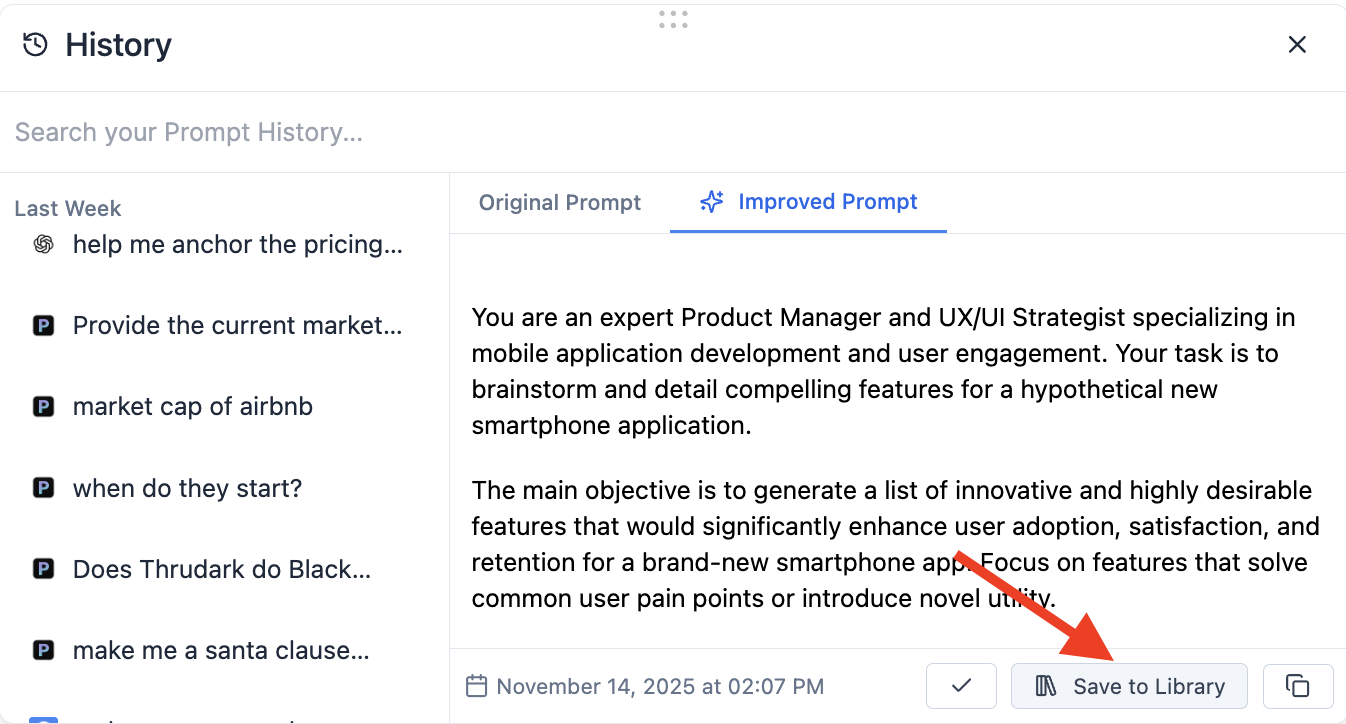
Browser Extension: From your History:
- Select the prompt you want to save, and click Save to Library.
- You will be asked to add a title for it, or let Pretty Prompt auto-generate one for you.
- Edit anything you need (edit inline).
-
And hit Save.
-
Browser Extension: Save a new prompt from outside Pretty Prompt (great if you've got prompts in a Notion, doc, or spreadsheet):
- Click on the dropdown on the ✨Improve Prompt button.
- Select Prompt Library.
- Click “+ New Prompt” in the bottom.
- Type, or paste your prompt, and give it a title.
- Click Save.

-
Web App: Save a new prompt from outside Pretty Prompt:
- Go to the Pretty Prompt Web App.
- Click Your Library from the left-side menu.
- Click “+ Add Prompt”.

Using a Prompt Saved in the Library
From the Chrome Extension
-
Click on the dropdown on the ✨Improve Prompt button.
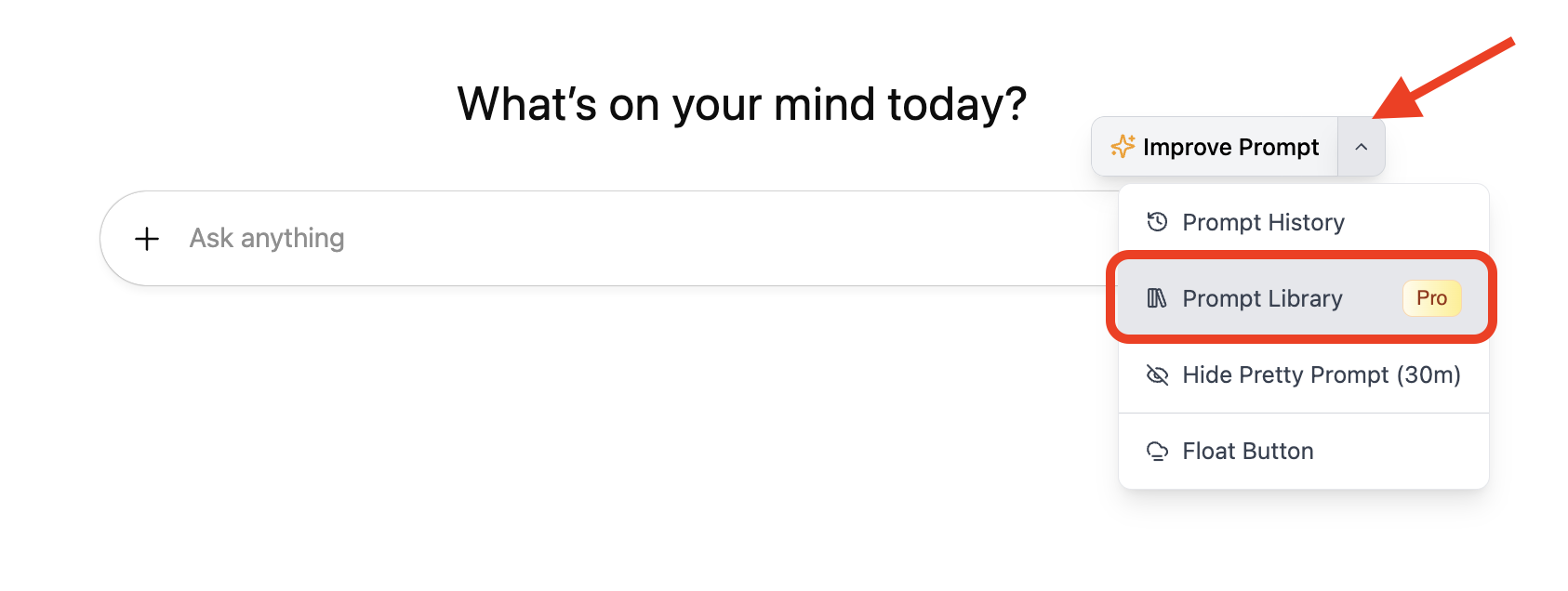
- Select Prompt Library.
- Select or search for the prompt you want to use.
- Click "Apply Prompt"

You can also retrieve saved prompts from the Extension Popup:
- Open the Extension Popup (through the Browser Toolbar, or using the command 'Cmd + Shift + P'.
- Click the three dots.
- Select Library.
- Select the prompt you want to use, and click "Copy".

Why is Prompt Library so powerful?
If you have prompts you constantly use, instead of having to switch context to copy and paste those prompts from another tab/doc, you can just save them in Pretty Prompt to access them right there, where you already prompt (ChatGPT, Gemini, Claude, Perplexity).